Originally published January 16, 2022 on my old blog, Murphy Things, and moved here in November 2026. Some product details and prices may have changed since it was written.
Travel router update (November 2026): the setup in this post works with any GL.iNet travel router, and these are the current models I recommend for photo booths:
- Beryl 7 (GL-MT3600BE): my go-to. Compact dual-band Wi-Fi 7, two 2.5G Ethernet ports and USB-C power, so it runs off the same power bank or charger as the rest of the booth.
- Slate 7 Pro (GL-BE10000): tri-band Wi-Fi 7 for big events with several booths, iPads and print servers on one network.
- Mudi 7 (GL-E5800): 5G cellular with a battery and touchscreen, for venues with no usable WiFi at all.
Shop the current lineup through my GL.iNet link (affiliate). The steps and settings in older posts still apply; menus on newer firmware may look slightly different.
Read the updated update details in this guide from DNP. Still slow, users should still not use it’s Wi-Fi. Worth the update if you have one.
Better than nothing, it’s quite something! The little Linux box that could…
In this post I’ll cover some behind-the-screens info about the WCM2 and some troubleshooting steps that should fix everything but hardware failure or PEBKAC.
RTFM: DNP Finally released a GREAT Manual. Below are my additions to it’s troubleshooting and whatnot.
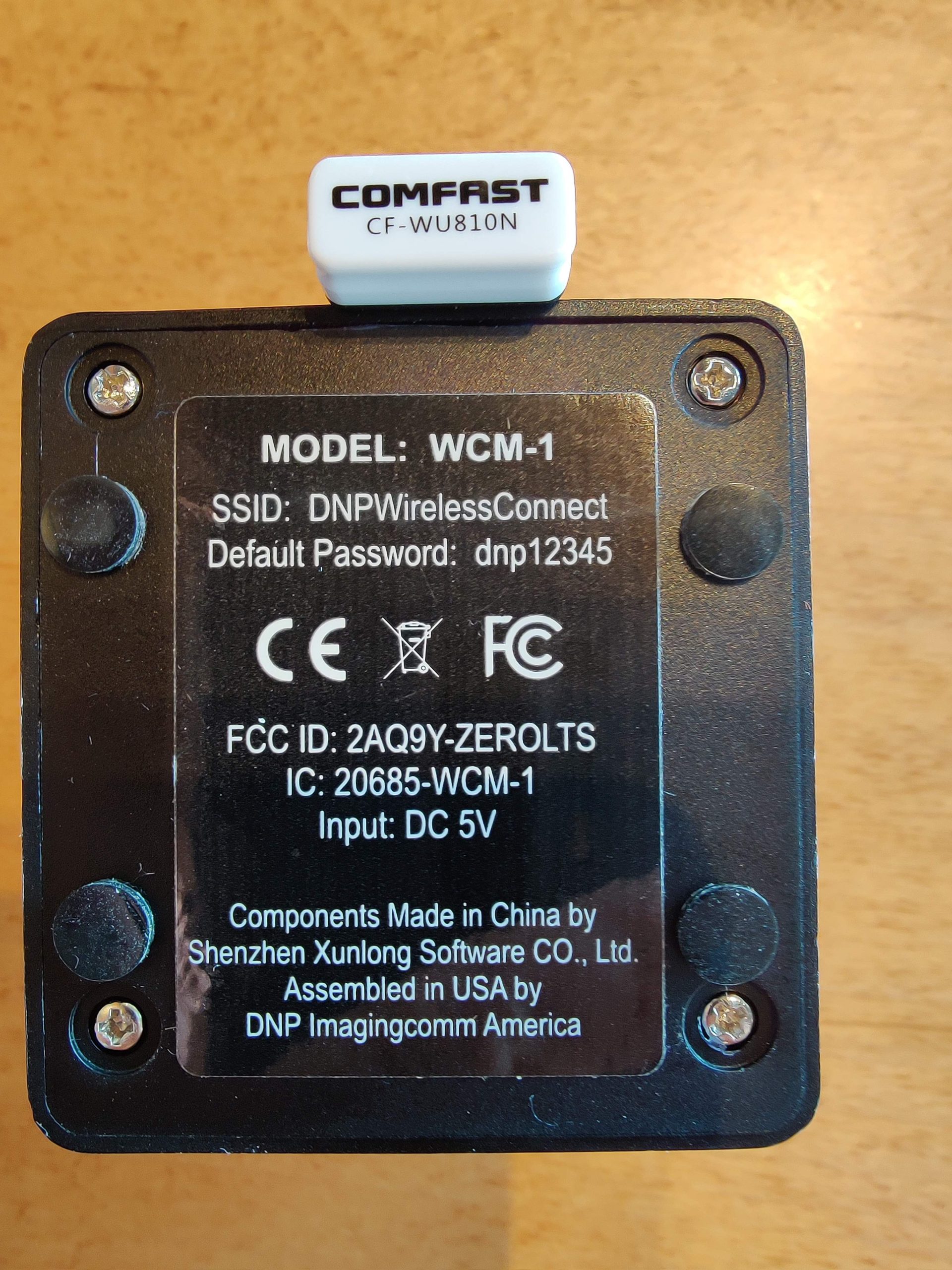
The DNP WCM2 Brings AirPrint compatibility to most all DNP printers, and network printing for laptops/desktops as well. It’s the second iteration with software that appears to be home-grown by DNP, where V1 of this unit used AirCastPro with only DNP support.
What’s on the inside of this little box is a $20 SBC Called the Orange Pi Zero LTS 512mb version. The software is Linux with print serving services and an additional wifi dongle. From my understanding the USB WIFI dongle is the Access Point that broadcasts the DNP WCM WIFI you connect your devices to, and the WIFI built into the board is what connects to your WIFI of choice (Like a travel router, venue wifi, hotspot, etc.)
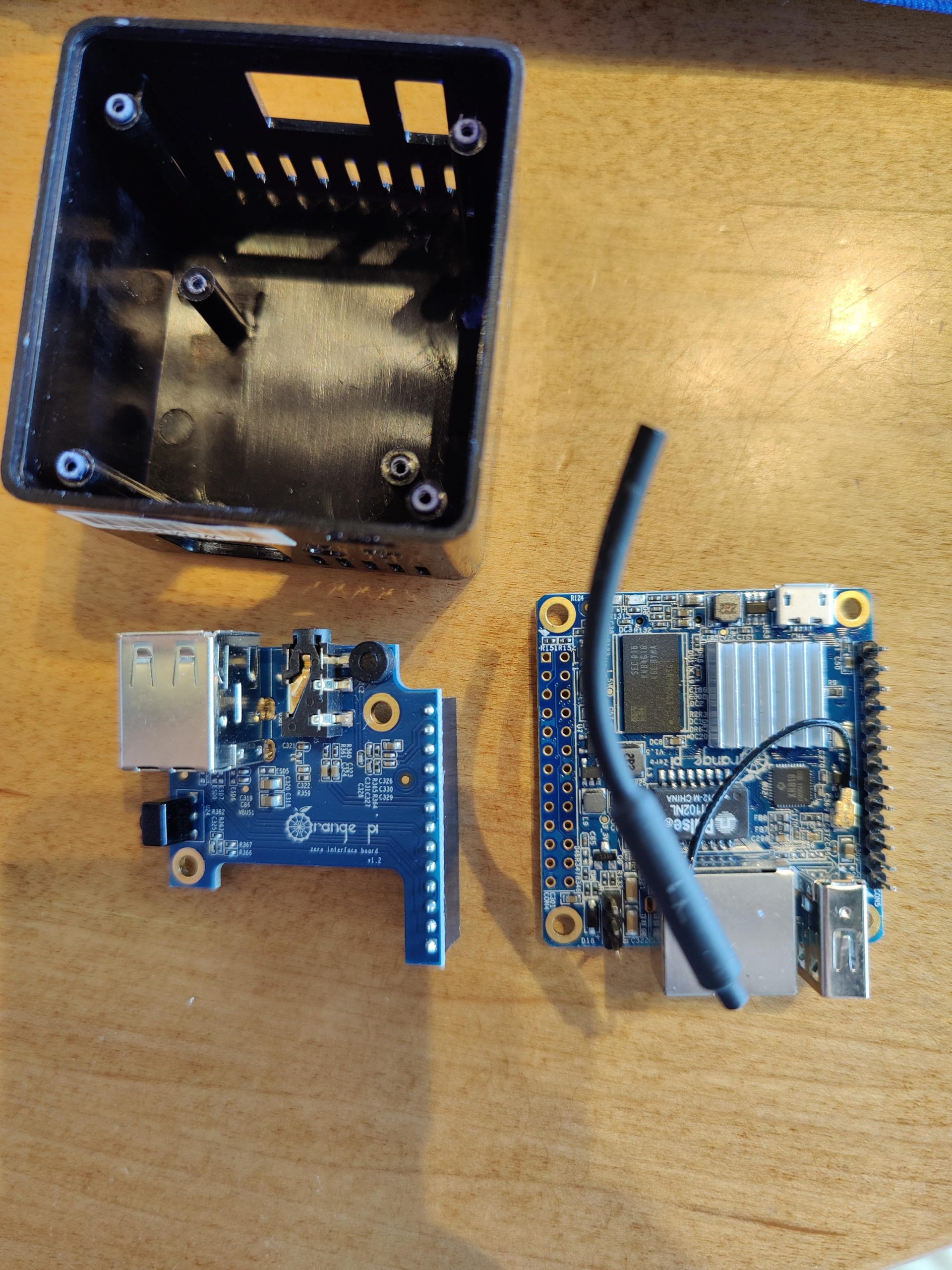
Here is, in my opinion, the best way to setup ANY of the little print servers (WCM, WCM2, AirCastPro, Selfie Wizard, etc) Is to pair it with a good travel router or other full networking equipment. The reason for this advice is that the WIFI of these devices is meant to be a client device, and the Access Point feature uses a driver and software stack that just isn’t up to par. On top of that the range is less-than-stellar.
For the geeks, most solutions are using a 1T1R (single chain) 2.4Ghz radio, and at that a bottom-of-the-barrel part to keep costs down. Both onboard and USB adapter.
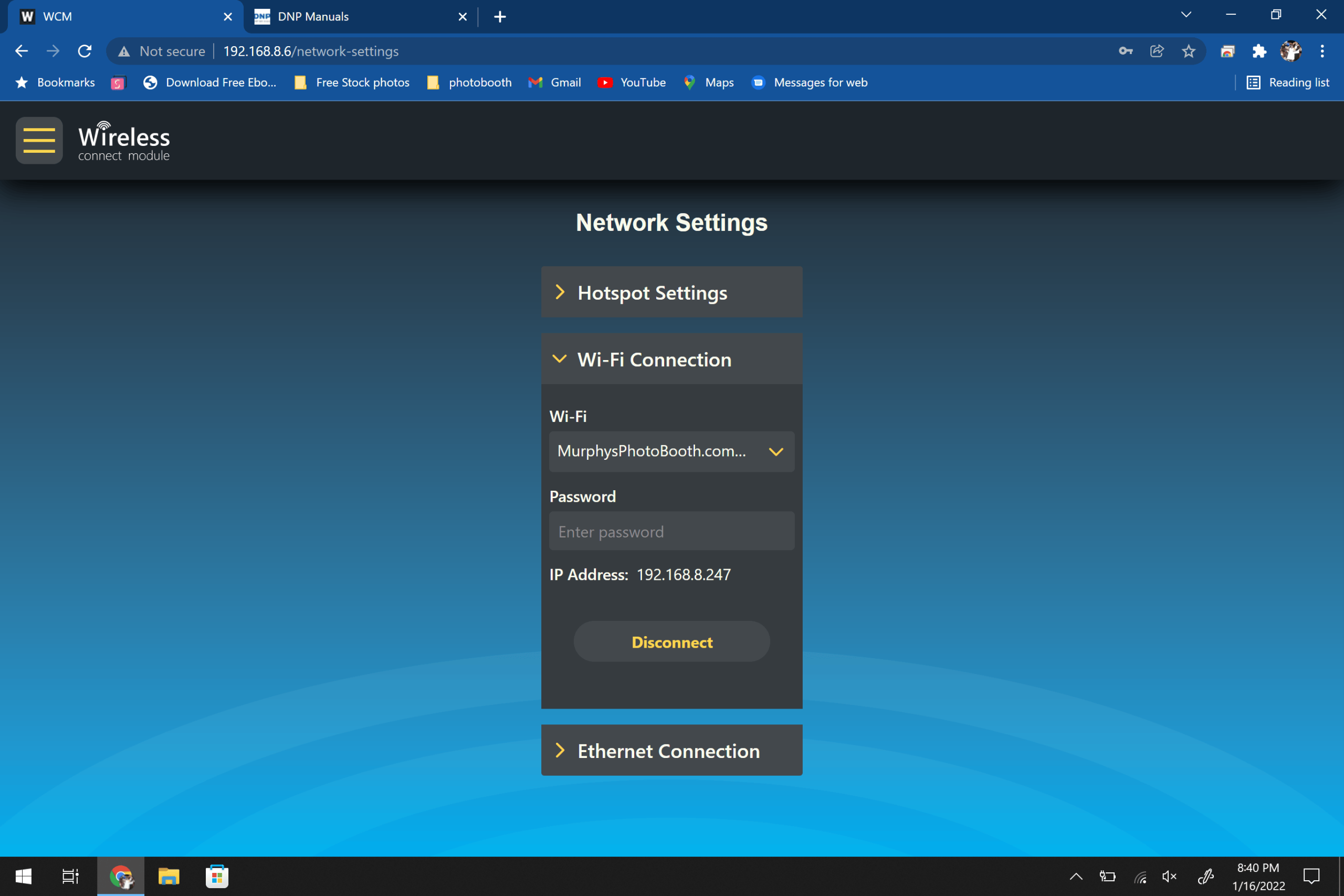
To connect the WCM2 to a travel router, use a Ethernet cable NOT WFIFI!
Then connect your devices to your travel routers WIFI.
A Hotspot is NOT The same as a travel router.
Troubleshooting
AKA: I Forgot my password, WIFI Password, how to connect to the thing, it stopped working, etc.
Power issues:
The WCM2 comes with/requires a 5V DC 2.5Amp power supply, DO NOT use anything less, you can however use a 3A 5V power supply. Anything less and the unit will likely crash when a print job is sent to it and/or devices connect to it’s wifi.
SD Card issue:
Pop it out and back in while the unit is unplugged. Plug it back in.
Any sort of WIFI connectivity issue:
DON’T use/rely on the WCM2 WIFI, use and become familiar with a travel router or other network equipment. If you must use the units WIFI, please read the manual. Even in the manual it recommends Ethernet for faster processing times… Which using your own travel router that connects to the WCM2 via Ethernet counts towards having faster processing times UNLESS your travel router somehow has crappier WIFI than the WCM2.
Can’t Login to the WCM2:
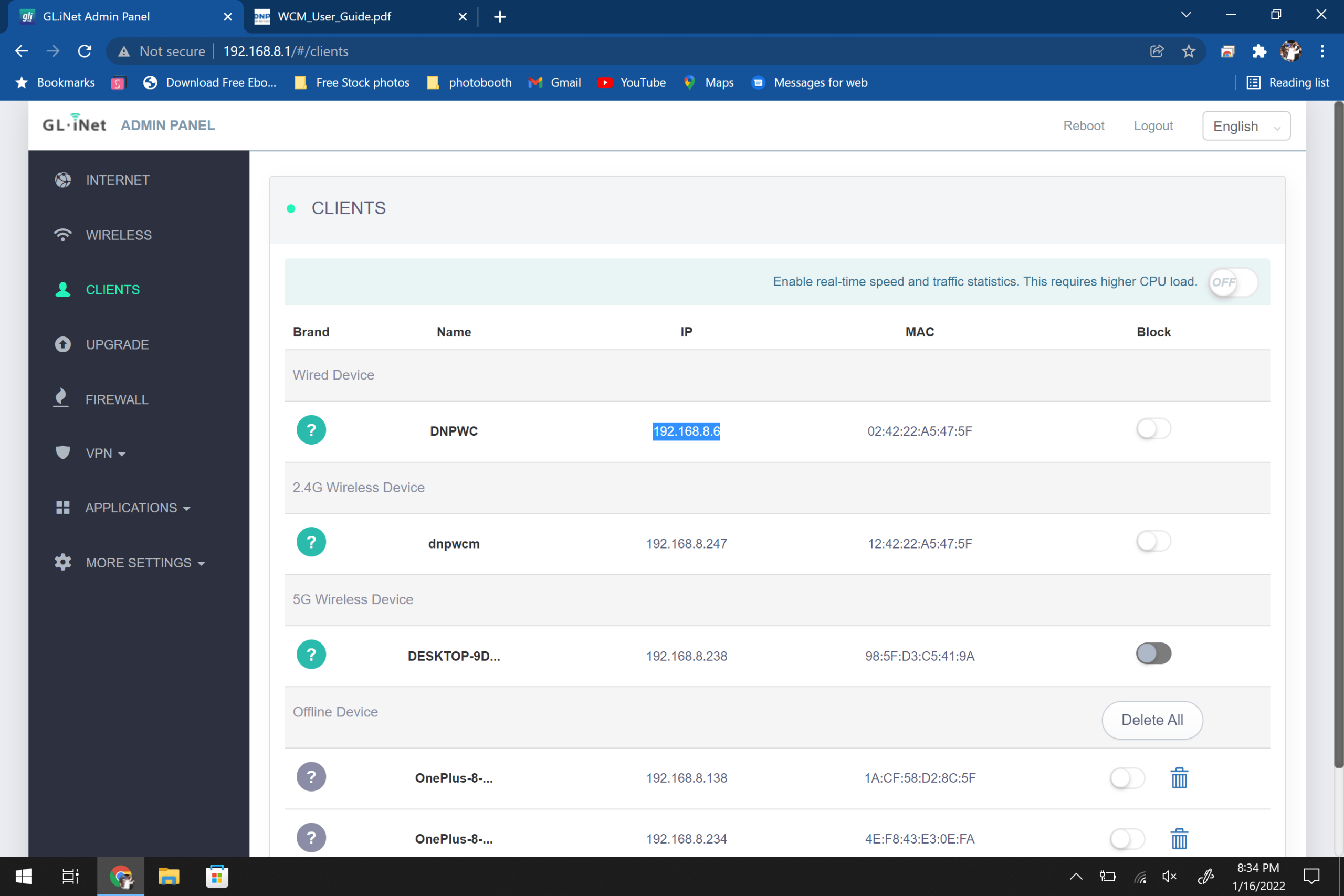
1. Connect the WCM2 to your router
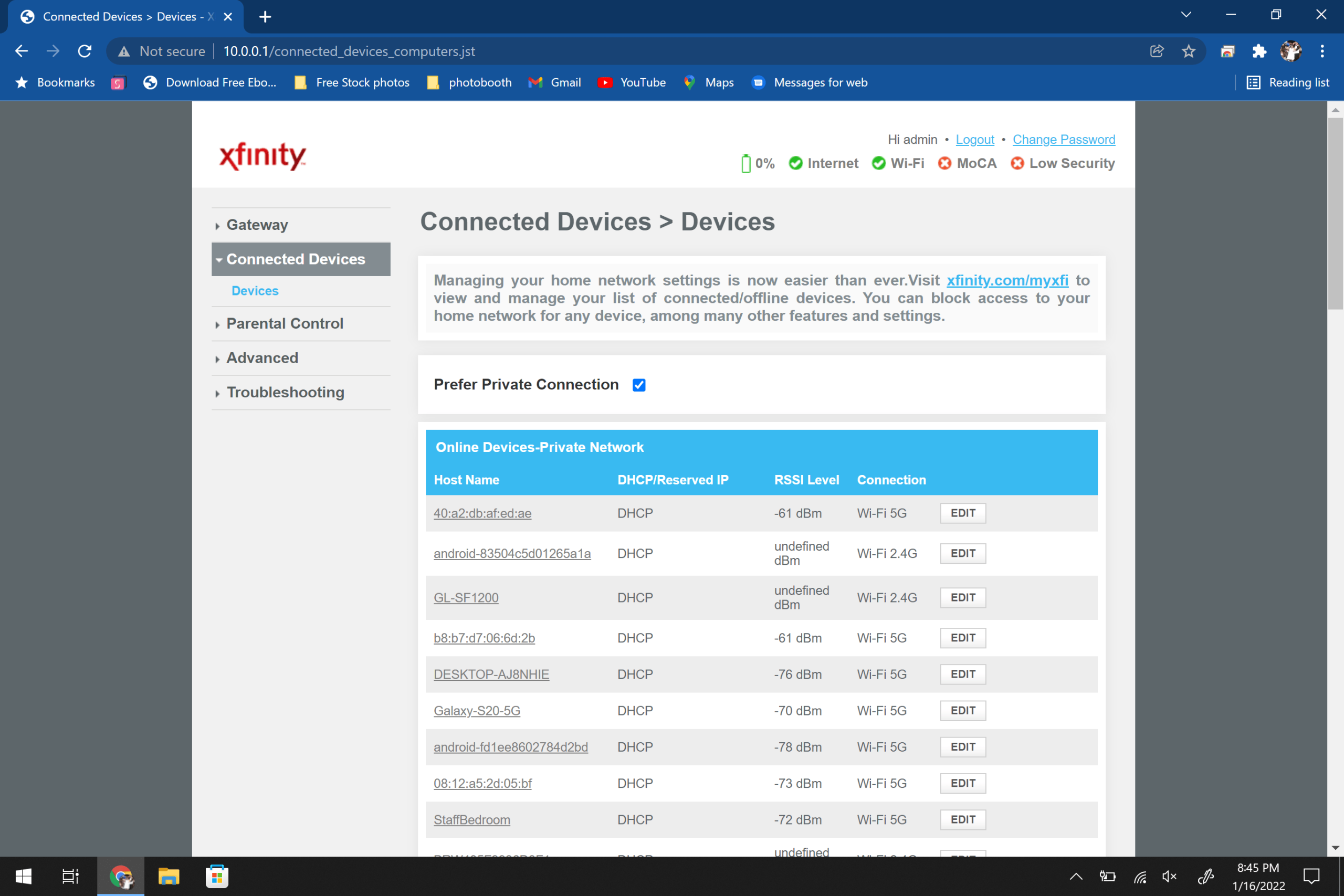
2. Browse to your routers Admin page (IP/URL is probably on the routers label. usually 192.168.1.1, 192.168.0.1, 10.0.0.1, if no luck Google “How to log into INSERT ROUTER NAME Admin interface”
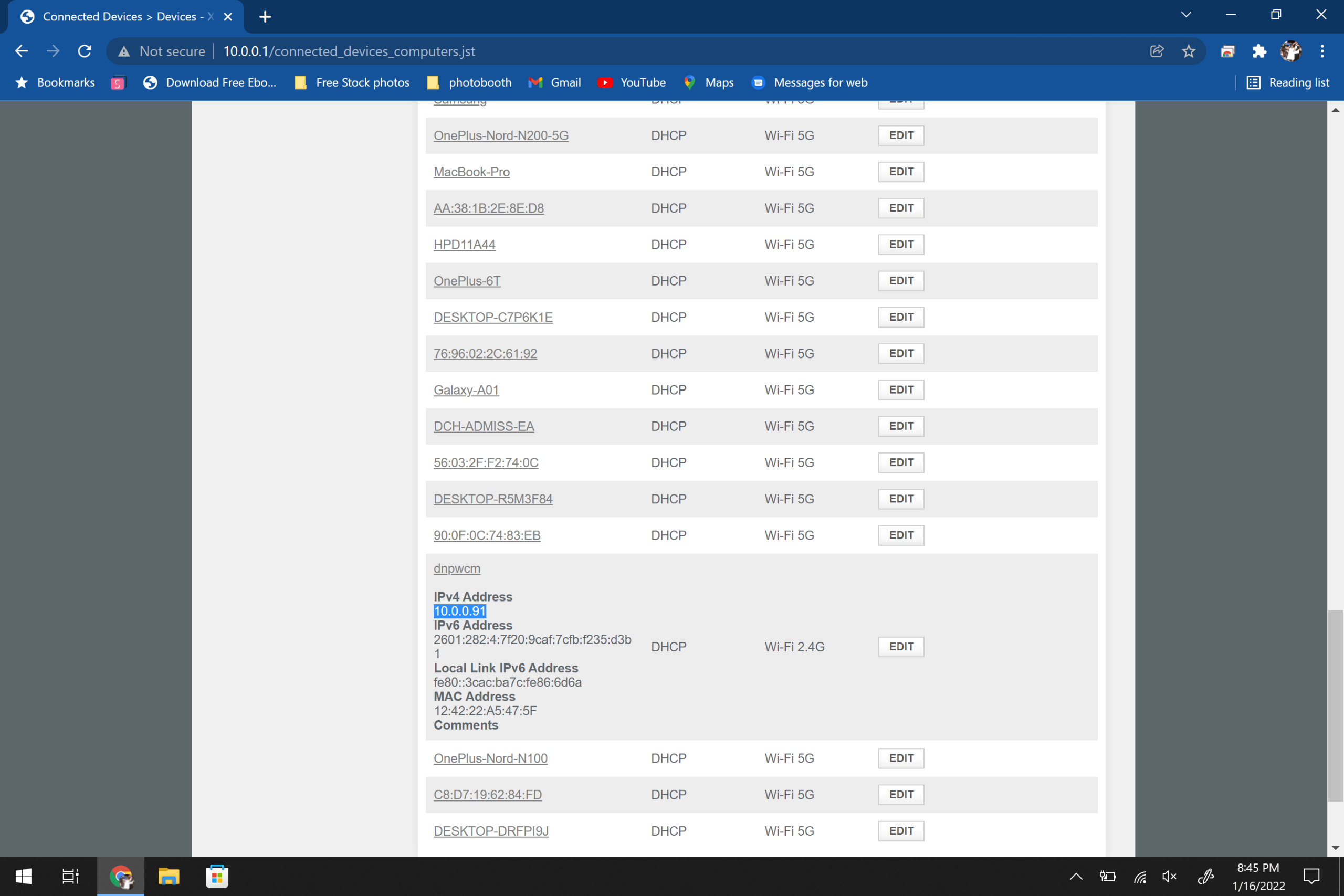
3. Go to the “Client” “Connected Devices” “DHCP Reservations” section of the web interface.
4. You should see “DNPWCM” listed, look for it’s IP Address.
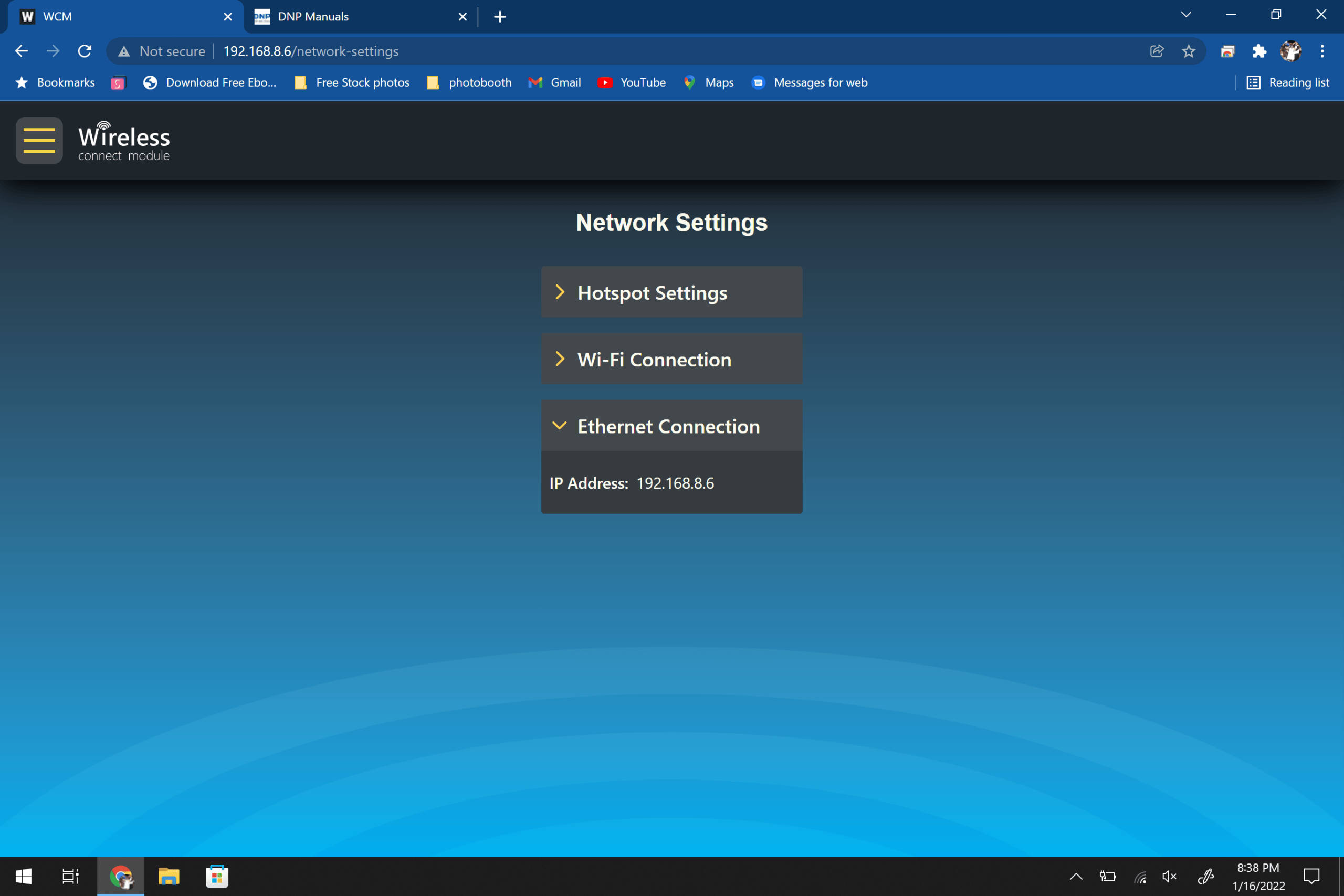
5. Browse to the IP Listed for the DNPWCM
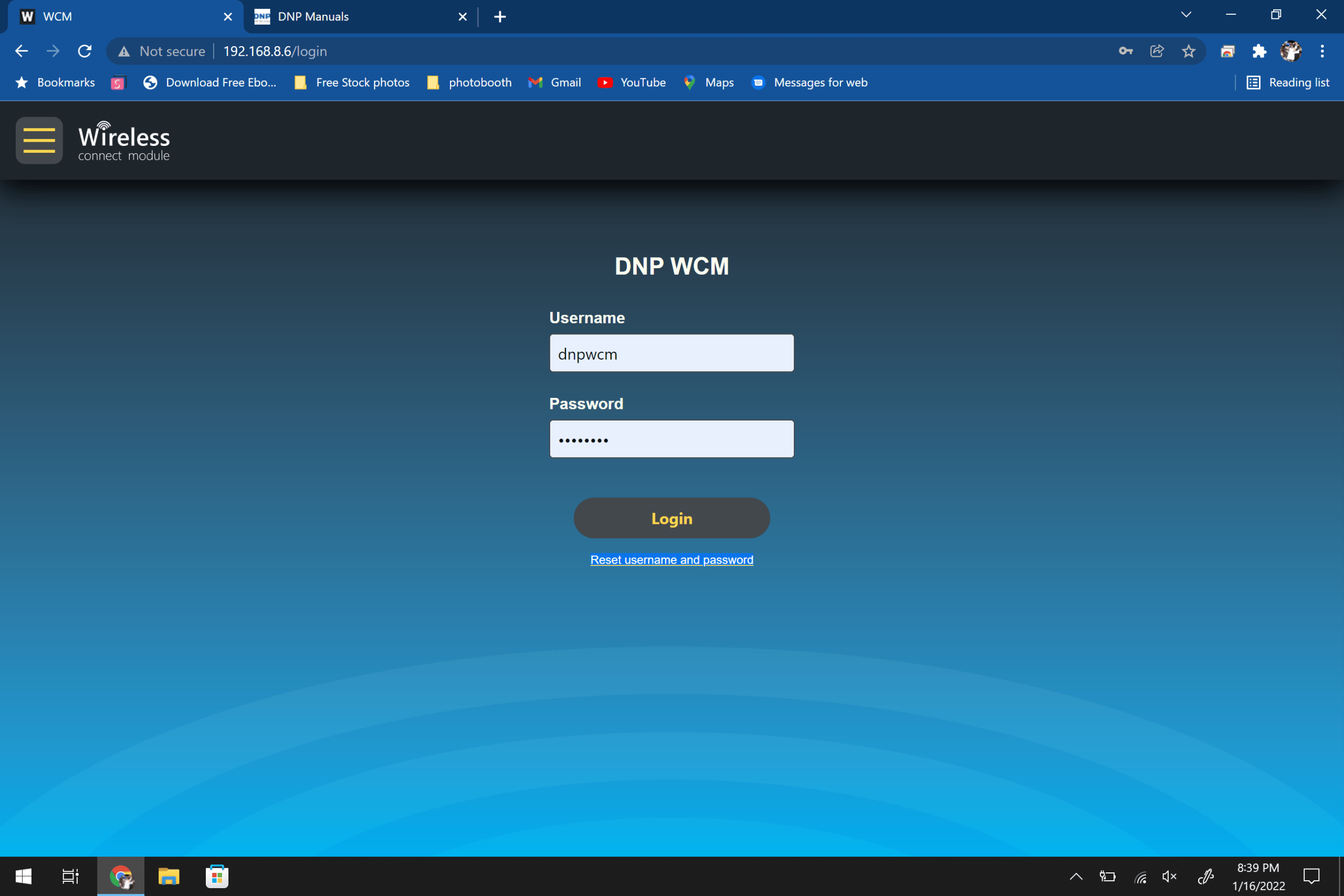
6. At the login page select to rest password/forgot, it’ll reset to the default listed in the user manual linked at the beginning of the article (Teach a man to fish and all that…)
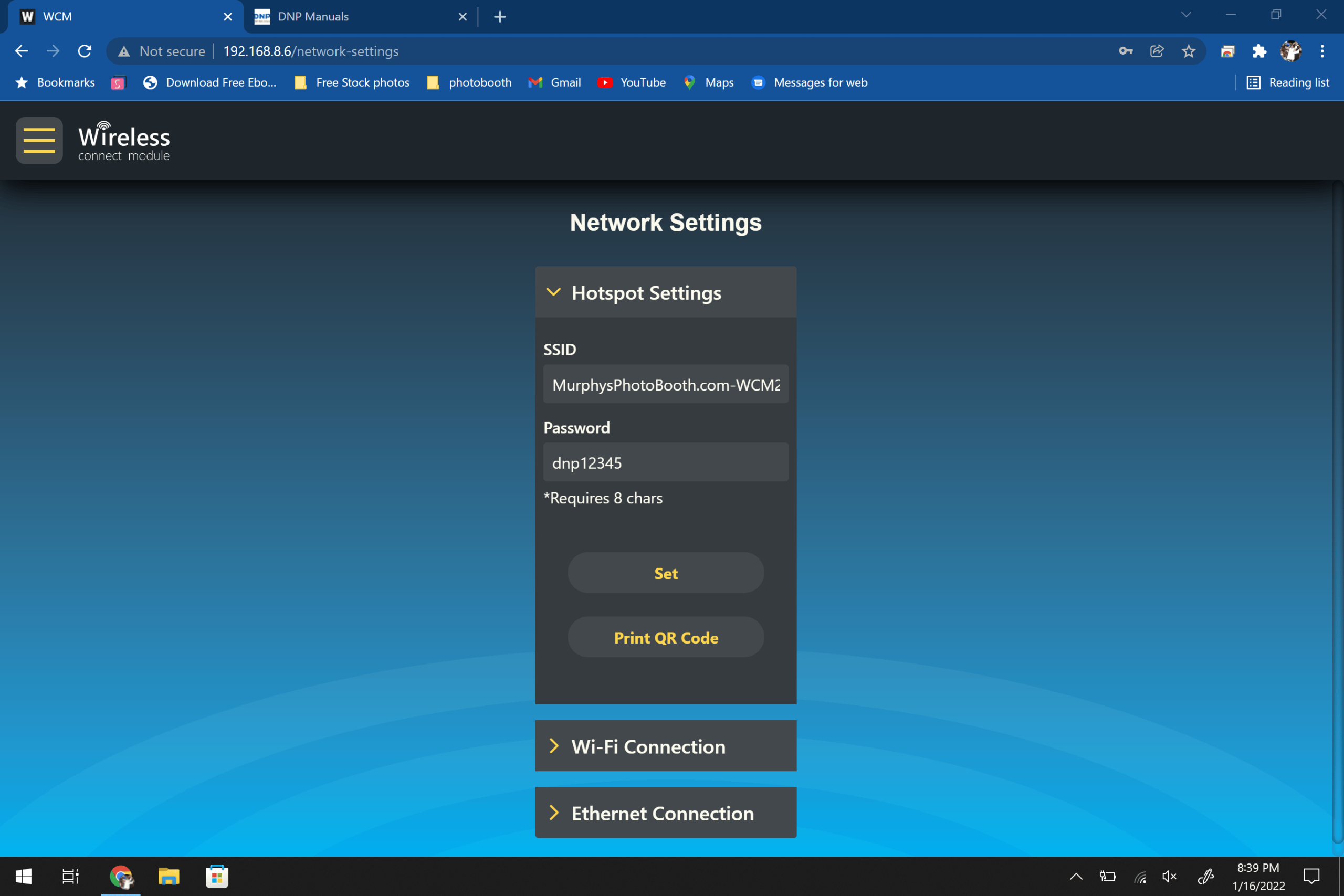
7. Once logged in you can change this again, and view/edit your WIFI settings.
Here’s a gallery highlighting some of the steps:
UPSELL THIS FEATURE!
And send me a thank you tip…
The WCM2 has WCM Print, using your own WIFI, some FREE Consulting from me, and a little elbow grease and guests could print their photos from their phones, on your equipment, but no overlays or anything.
Read the manual about WCM Print
Use a travel router that does DHCP Reservations
Print TWO QR Codes, one for guests to connect to your WIFI, another to access the WCM Print page. Or if your fancy like me, have a link on your captive portal to the WCM Print page….
Printer acting up the night before an event? Get a real technician in your corner. I work with Photo Booth Support, which offers 24/7 technical support for booth operators by phone, chat and remote access for software, printer and camera issues. Plans are per booth and month-to-month: Emergency covers live-event emergencies around the clock, and Premium adds scheduled non-emergency help and training on your software. There are also setup and training appointments.
Want one-on-one help with a custom setup? I also do custom consulting for photo booth operators.
Do your own homework: This post shares what has worked for me, but software, firmware and hardware change all the time. Before you change settings, install anything or buy gear, research it yourself and read the official manuals and support documents for your exact model and version. Test everything well before an event. This is the internet: I accept no liability for any mistakes, damage, data loss or missed shots that come from following this post. Use it at your own risk.